You open a 90 minute video for one useful point, then sit there waiting for it. Most of us give up halfway.
AI can fix this in about a minute, for free. But most guides explain it wrong, which is why people try it once and quit.
Here is the mistake. They say paste the link and wait. With some tools that works. With others, you get a summary of a video the AI never opened, built from the title alone.
So I checked all seven tools below against their own help and pricing pages. One had quietly stopped working, so it is not here.
You will learn which tools take a plain link, which need a little help from you, and one method that works even when every tool says no.
Quick answer
Paste your link into Google Gemini, Google AI Studio, Gemini Notebook or Perplexity. All four are free and give you a summary in seconds.
ChatGPT and Claude cannot open a YouTube link. For those two, you paste the video’s text yourself. I will show you how below.
For very long videos, that text method is the most reliable option you have.
First, what these tools actually read
One idea makes everything else easy.
An AI cannot watch a video the way you do. What it reads is the transcript, the written version of everything spoken in the video. YouTube makes one automatically for most videos, and that text is what the AI studies to write your summary.
That splits the seven tools into two groups.
The first group fetches the transcript itself. You give the link, it collects the text, it reads it. Gemini, AI Studio, Gemini Notebook, Perplexity and the Glasp extension all work this way.
The second group cannot reach YouTube at all. ChatGPT and Claude sit here. They read text well, but they cannot visit a video, so you bring the text to them.
This is where the fake summary comes from. Paste a bare link into ChatGPT and it sometimes admits it cannot open the video. Other times it writes a summary from the title and what it already knows. It looks real, with nothing to warn you.
One more thing decides whether a tool suits your video. Since most read the transcript, they only know what was said out loud. A formula written on screen, a button someone points at without naming, a menu shown in silence, none of that reaches them.
Only one free tool actually sees the screen too, and that is Google AI Studio. That is why it handles tutorials and slide decks when the others cannot.
And if a video has no captions at all, most tools give you something vague or refuse. That is the number one reason people say a summarizer did not work.
The method that always works
Learn this one first. You will use it for years.
Many apps call themselves free, then stop you after three videos a week. This method has no limit, costs nothing, and is the only way to use ChatGPT or Claude on a video.
You are just collecting the transcript yourself. On a computer:
- Open the video. Click the three dots below the player, next to Share.
- Click Show transcript. A panel opens on the right with the full text.
- Inside that panel, click the three dots again and turn off timestamps. Those are the little time numbers before each line. Off gives you clean text.
- Select it all and copy.
- Open ChatGPT, Claude or Gemini and paste it in. Here’re some free ChatGPT alternatives you can try.
Then ask: summarize this transcript in 10 bullet points, then give me the three main takeaways.
One minute, start to finish.
For a very long video, you may hit a wall. Every chatbot can only read so much text at once, and two hours of video makes a lot of text. Cross that limit and the tool either refuses or skips the ending, so your summary misses the last part.
The fix is simple. Feed it in pieces.
- Split the text into two or three parts. Break where the topic changes.
- Paste part one and say: this is part 1 of 3, summarize only this part.
- Do the rest in the same chat, so it remembers.
- Finish with: now join those into one summary, main takeaways in order.
One limit to know. A transcript is only speech. For interviews and lectures that is almost everything. For a screen recording where the clicking is the lesson, use AI Studio instead.
Doing this every day? A free extension called Glasp does the copying in one click. It is tool number 5 below.
1. Google Gemini
What it reads: the transcript, which it collects from your link.
- Open gemini.google.com and sign in with your Google account.
- Copy the video link, either from the address bar on a computer or from the Share button in the YouTube app.
- Paste the link and type: summarize this video with the key points.
- Ask any follow up questions in the same chat.
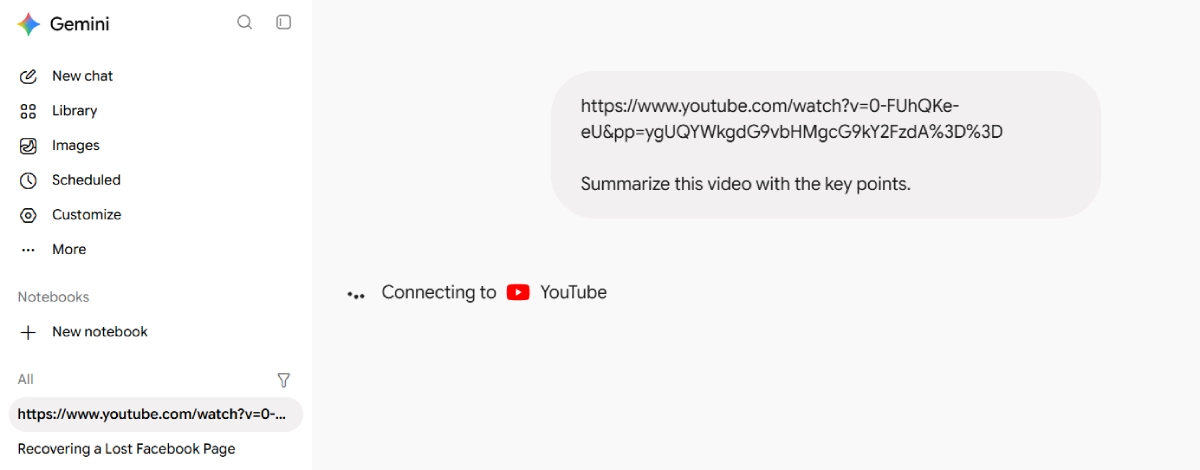
Start here if it is your first time. Nothing to install, no new account. Your Google account already works.
Gemini is best for interviews, news explainers and podcasts, where almost everything is spoken aloud. It also does something most tools cannot: you can keep asking it questions afterwards. If the summary mentions pricing and you want more, just ask.
One detail confuses people. Gemini’s free plan allows a five minute video upload, and many assume that caps YouTube links too. It does not. The five minute rule is for files you upload from your device. A pasted link uses the transcript, so length is not the issue.
2. Google AI Studio
What it reads: the actual video frames and the audio, not only the spoken words.
- Go to aistudio.google.com and sign in with your Google account.
- Paste your YouTube link into the prompt box, or choose the YouTube video option from the add menu.
- Type your request. Being specific helps a lot here. For example: list every tool mentioned in this video along with timestamps. Or: explain the code shown on the screen, step by step.
- Send it and wait a few seconds.
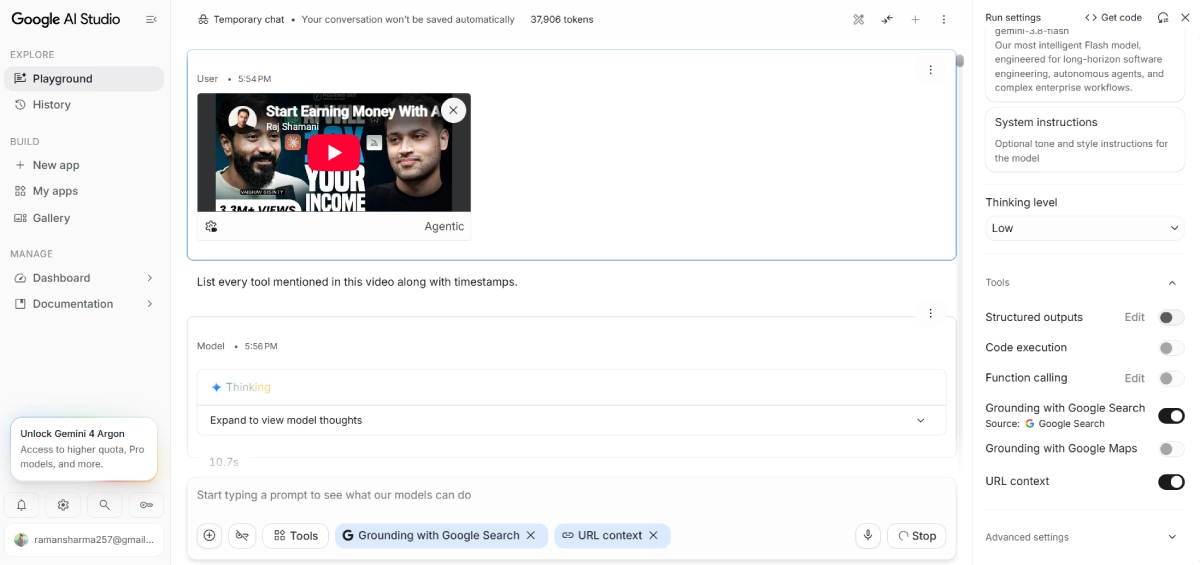
Almost nobody lists this one, and that is a mistake. For long or visual videos it is the strongest free option right now.
AI Studio is a page Google built for developers, but you write no code to use it. It is free in India, you sign in with a normal Google account, and no card is needed.
It beats the two problems that stop every other tool. It handles videos of around three hours, and it looks at the picture. So for a coding tutorial, a lecture with a whiteboard, a slide-heavy webinar, or a video where the narrator says click this without naming the button, this is the tool that can tell you what happened.
On the free plan you get up to eight hours of YouTube a day, with normal daily limits on top. You can even paste up to ten links at once and ask it to compare them. Public videos only.
Three quick warnings. The player sometimes will not preview inside the page, which is fine, the summary still comes through. On the free plan Google may use what you type to improve its models and reviewers may read it, so keep private things out. And YouTube support here is still a preview feature, free for now, with limits that could change.
3. Gemini Notebook
What it reads: the transcript, which it collects from your link. It’s the best one for studying.
- Open notebook.google.com and sign in. If you have the old notebooklm.google.com address saved, it will take you there automatically.
- Create a new notebook and choose the YouTube option.
- Paste the video link and click insert.
- Read the summary it creates, then start asking it questions in normal language.
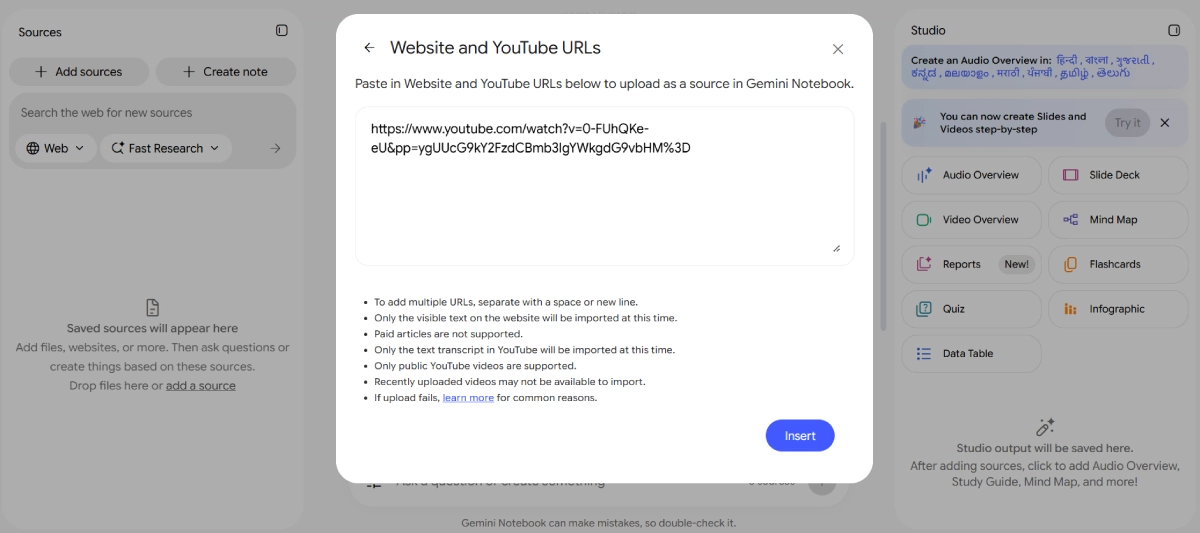
You may know this as NotebookLM. Google renamed it Gemini Notebook in July 2026, so do not worry if a tutorial’s screenshots look different.
Use it when one summary is not enough. It keeps the video saved as a source you can keep questioning, and answers come from that video, not the open internet. It also makes mind maps and audio overviews, which is why students love it.
The free plan is generous. You get 100 notebooks, 50 sources in each, and each source holds up to 500,000 words. An hour of speech is about 8,000 to 10,000 words, so one source fits roughly 45 to 55 hours of video.
The limit you will notice is usage, not storage. Your free allowance refreshes every five hours.
Its best trick is comparison. Add five videos on one topic and ask where the creators disagree. No single-video tool can do that. Only public videos work, and a very fresh upload sometimes fails until YouTube finishes its captions.
4. Perplexity
What it reads: the transcript, which it collects from your link.
- Go to perplexity.ai and sign in. A free account is enough for this.
- Paste the YouTube link into the search box.
- Ask for what you need, for example: extract the full context of this video, list the main arguments, and note any figures mentioned.
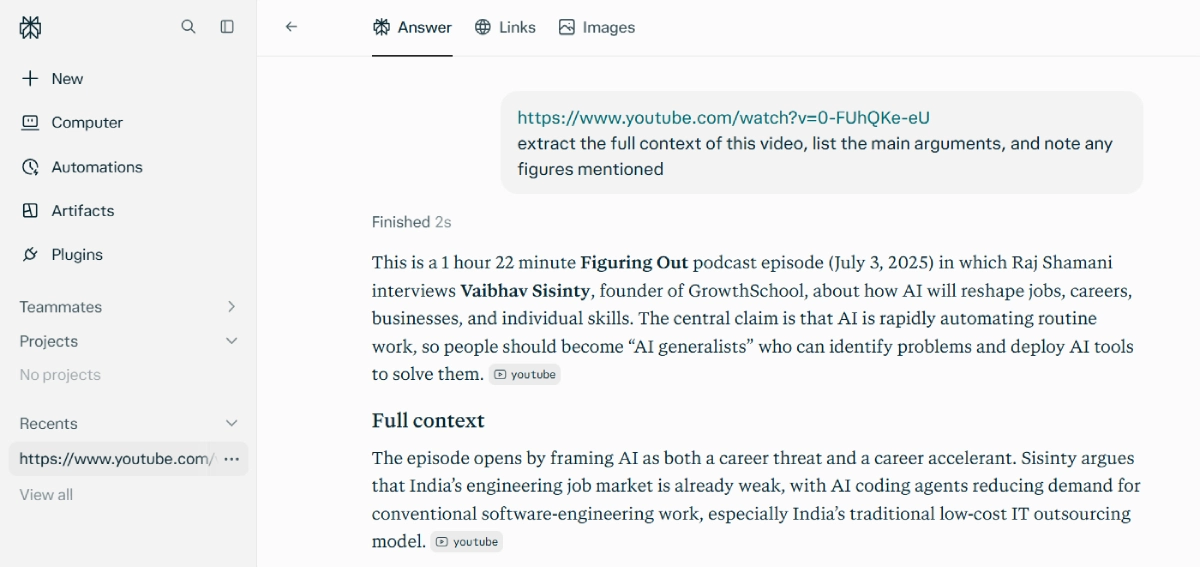
Perplexity fetches the transcript as soon as you give it a link, and usually returns something longer and better organised than Gemini. When you want proper sections and sub points instead of one paragraph, use this.
It suits research, product comparisons and long analytical videos, where you want the reasoning kept whole.
Two things to expect. Private and unlisted videos will not work. And a video uploaded minutes ago may come back empty, because YouTube has not prepared the transcript yet. Wait an hour and retry.
5. Glasp
What it reads: the transcript, taken from the page you are already on.
- Install YouTube Summary by Glasp. It works on Chrome, Edge, Firefox, Safari, Brave and Opera.
- Open any YouTube video and click the Glasp panel next to the player.
- Choose which AI you want to write the summary, then send the transcript across.
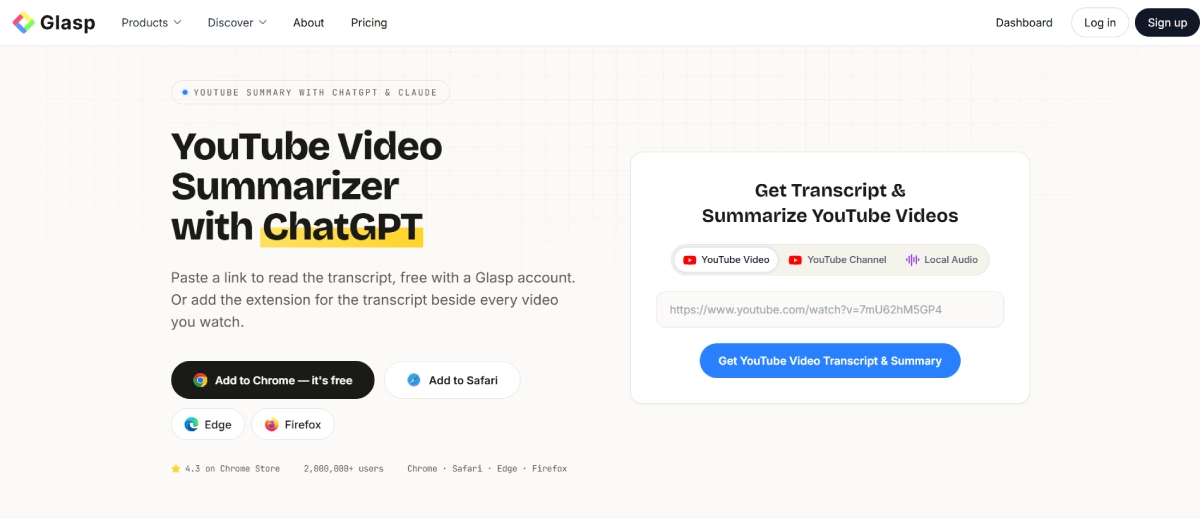
Glasp is a free browser extension, a small add on that sits in your browser. Once installed, it appears beside the YouTube video. Click it, and it collects the transcript and sends it to ChatGPT, Claude, Gemini or Mistral in a new tab.
So you get one-click convenience, but a real chatbot still writes the summary. A nice middle ground.
This is for people who summarize often enough that the copying starts to feel like work. It also keeps the transcript beside the video with timestamps, so you can highlight the useful lines.
The free plan gives three summaries a day, plus three of Glasp’s own in-panel summaries a week. The iPhone and Android apps share the same allowance. No transcript on the video? Glasp can listen to the audio and make one, up to 30 minutes a month free.
6. ChatGPT
What it reads: only the transcript you paste in. It cannot open a YouTube link.
- Copy the transcript using the Show transcript steps explained earlier.
- Open chatgpt.com and paste it into the chat.
- Be specific about what you want, for example: summarize this in 8 bullet points, then list every tool and person mentioned.
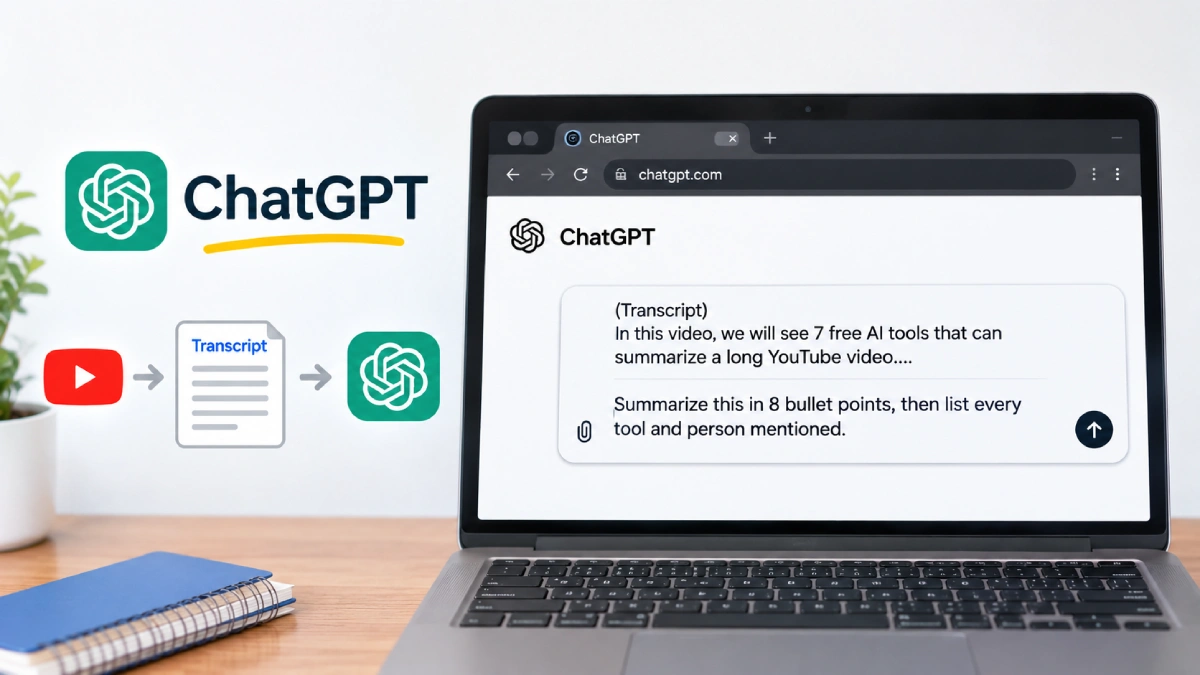
I want to be clear here, because this is where most articles mislead people. ChatGPT has no YouTube connection. It cannot visit, watch or listen to a video.
It does plenty of other things well, and you can even use ChatGPT on WhatsApp, but reaching a video is not one of them.
So a bare link gives you one of two things. Sometimes it admits it cannot open the video, which is the honest reply. Other times it writes a full summary from the title, the description, and what it already knows.
That second reply is the trap. It is well written and confident, and nothing tells you the AI never opened your video. If you paste only a link and get a summary, treat it as a guess.
Give it the transcript, though, and ChatGPT becomes the most flexible tool here. Ask for a study sheet, a checklist, a short LinkedIn post, or an explanation for a complete beginner, and it matches your request.
The free plan handles a medium video in one go. For longer ones, split the transcript as shown earlier.
7. Claude
What it reads: only the transcript you paste in. It has no video support and no YouTube connection.
- Copy the transcript from YouTube.
- Open claude.ai and paste it into a new chat.
- Ask for depth, for example: give me a detailed summary with the main arguments, the evidence used, and the conclusions.
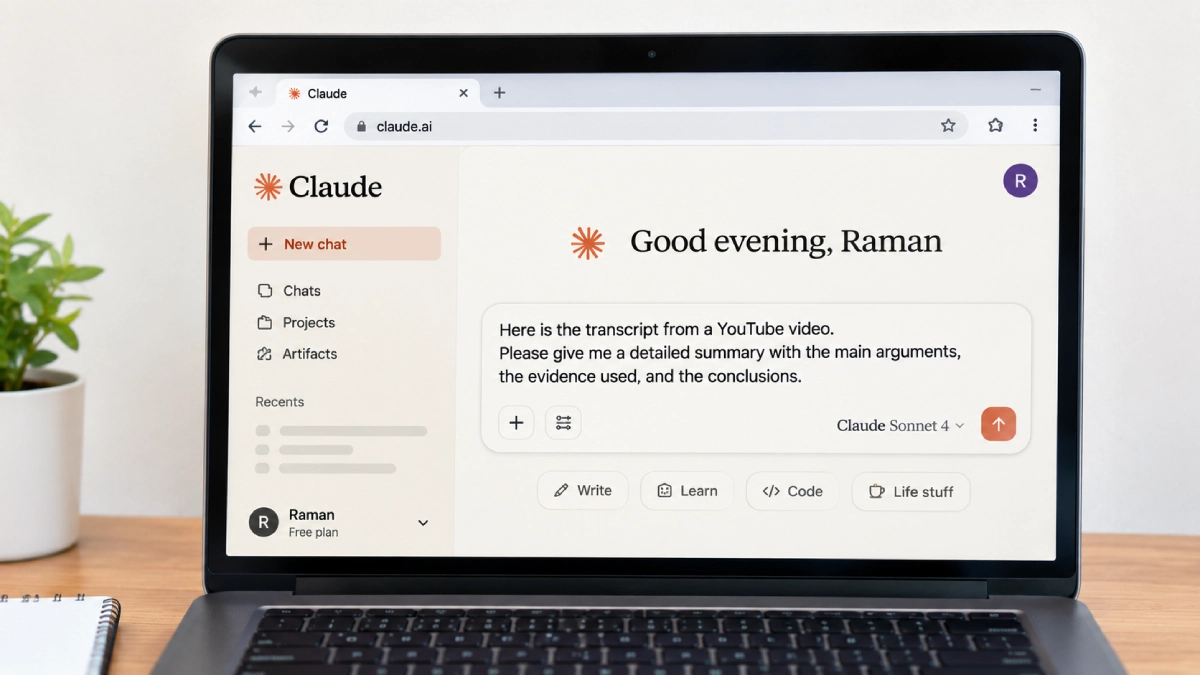
Same rule, same reason. A link alone gives Claude nothing, so bring the text.
It pulls ahead on hard material. On a two hour technical talk or a long lecture, it follows the argument and explains the reasoning instead of flattening it into bullets. If you read to understand rather than skim, you will prefer this one.
Free use comes with daily limits, fine for a few videos a day.
All 7 tools compared
| Tool | Takes a link? | What it reads | Free limit | Best for |
|---|---|---|---|---|
| Google Gemini | Yes | Captions | Free, daily usage limits | Fast summaries plus follow-up questions |
| Google AI Studio | Yes | Frames and audio | 8 hours of YouTube a day | Long videos and anything visual |
| Gemini Notebook | Yes | Transcript | 50 sources per notebook, budget resets every 5 hours | Studying and comparing several videos |
| Perplexity | Yes | Transcript | Free account | Detailed, structured breakdowns |
| Glasp | Yes, on the page itself | Transcript | 3 summaries a day | Summarizing without leaving YouTube |
| ChatGPT | No | Transcript you paste | Free tier usage caps | Custom output formats |
| Claude | No | Transcript you paste | Free tier daily limits | Dense, analytical material |
Which one should you choose
Want the least effort? Use Gemini. Paste, read, done. It covers most ordinary videos.
Is the video long, or is the important part on the screen? Use AI Studio. It is the only free tool that sees the picture, and three hour videos are fine.
Studying, or comparing several videos on one topic? Use Gemini Notebook. Everything stays saved and you can keep asking.
Need a specific format, or the captions are poor? Pull the transcript and give it to ChatGPT or Claude.
Doing this most days? Install Glasp and never leave the video page.
Where these tools quietly let you down
Most articles skip this part, and it is the part that costs people. None of these problems announce themselves.
Sarcasm disappears. A creator can mock a product for ten minutes, and the summary says they recommended it. Captions record words, not tone.
Anything unspoken is invisible. A price on a slide, a settings menu, the final figure in a sheet. If nobody read it out, the tool does not know it existed.
Indian-language captions are still uneven. Hindi captions have improved, but most creators mix English words into Hindi sentences, and YouTube often gets those English terms wrong. The summary repeats the mistake.
Paid promotions look like honest opinions. A sponsored plug is treated like the rest of the video, so it can appear as a genuine recommendation.
A wrong summary sounds exactly like a right one. This is the big one. Nothing in the writing tells you which parts to trust.
So do three quick checks before you act on a summary.
- Confirm that the video actually had captions. If the Show transcript button was missing, be careful with whatever summary you received.
- Verify one specific detail, such as a number, a price or a step in a process. Ask the tool for the timestamp and jump to that moment in the video.
- If money, health, legal matters or exams are involved, watch that section yourself. Use the summary to find the right minute, not to replace watching it.
Two minutes of checking. That is the gap between saving time and repeating something the video never said.
How to get a much better summary
The instruction matters more than the tool. “Summarize this” is why people think AI summaries are shallow. A vague ask gives a vague answer.
Tell it what you came for. These work in every tool here.
- Pull out the 5 main lessons and any steps I should follow.
- List every product, tool or person mentioned, along with timestamps.
- Summarize this for someone who knows nothing about this topic.
- What is the speaker claiming, and what evidence do they give for it?
- Skip the introduction and the sponsor segment, and summarize only the main content.
The timestamp one is the most useful. It turns the summary into a map, so you get the gist plus a route back to the thirty seconds you actually needed.
Watch videos in Hindi or a regional language? Two tricks. Ask for the summary in Hindi even when the video is English, which helps many readers. Or flip it and get a Hindi video summarized in English. Add the instruction at the end of your prompt. Gemini, ChatGPT, Claude and Perplexity all handle it.
To sum it all up
You do not owe every long video your full attention. Use Gemini for everyday videos, AI Studio when the video is long or the screen matters, and the transcript method for anything that fights back.
Keep one habit: the quick check. These tools are fast and mostly right, but when they are wrong they sound just as confident. Let the summary show you where the important part is, then look at that part yourself.