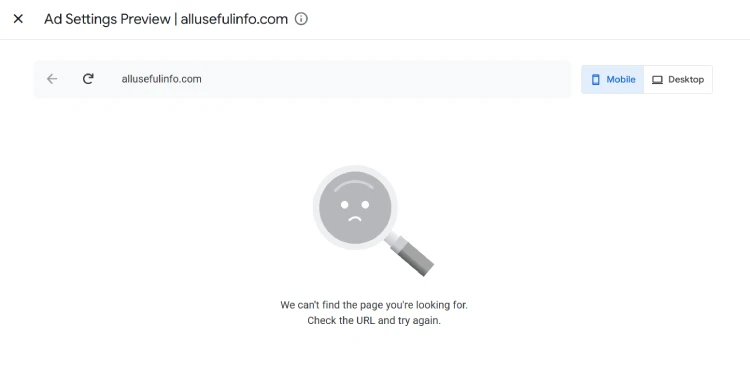
A few days back, I opened Google AdSense and tried to edit Auto Ads like always, but this time, the AdSense Ad Settings Preview didn’t work. Instead of a proper ad preview, it showed me a blank screen with this error message:
We can’t find the page you’re looking for.
Check the URL and try again.
This is where confusion starts.
Many people think something is wrong with their website or that AdSense has stopped working. Some people even worry that their ads are not showing to visitors anymore. But, in reality, that is usually not the case.
The Ad Settings Preview is only a viewing tool. It helps you see where ads may appear on your website. It does not control whether ads actually show on your site or not. So when the preview doesn’t load, it doesn’t mean your ads are broken or your earnings are at risk.
As shared in the screenshot above, I faced this same issue in my Google AdSense account. The ads were showing fine, but the preview just refused to work. After checking everything, I found that the problem was not AdSense at all. It was caused by a security setting on my site that was blocking the preview from loading.
That experience is the reason for this article. If Google AdSense ad preview is not working for you, there is a high chance the reason is simple and fixable. In this guide, I’ll explain why this happens and how you can solve it without any technical stress.
Quick Summary
If the AdSense ad preview is not working, the reason is usually very simple.
In my case, Cloudflare’s Bot Fight Mode was blocking the preview. I turned it off, refreshed the AdSense preview, and it started working right away.
There can be some other reasons too. If you’re not using Cloudflare or the Bot Fight Mode is already turned off, check if you’re using a browser ad blocker.
Sometimes the page itself is blocked, redirected too much, or needs a login.
So if the preview is not loading, start with Cloudflare, then check your browser, and make sure the page opens normally. Most of the time, one small change fixes everything.
What Exactly Is the AdSense Ad Settings Preview?
Before fixing the problem, it helps to clearly understand what this preview tool actually does.
The Ad Settings Preview tool is just a visual check. It shows you how ads might appear on your page. That’s it. Nothing more.
When you open the preview, AdSense tries to load your page on its own. It doesn’t open the page like a normal visitor using Chrome or mobile. It loads the page more like an automated system checking your site. Because of this, some security tools think it’s a bot and stop it.
Here’s the most important thing to remember:
This preview tool does not control your ads.
Your ads are shown to real visitors in a completely different way. Even if the preview fails, ads can still load normally for people visiting your site. Many site owners panic at this point and start changing ad codes, layouts, or settings. Most of the time, that is not needed at all.
So if the preview is not working, don’t jump to conclusions. It only means AdSense is having trouble showing you the preview. It does not mean your ads are stopped, or your earnings are gone.
Once you understand this, the problem feels much less stressful, and fixing it becomes easier.
4 Possible Fixes, Including The One That Worked For Me
Now, let’s talk about all the possible fixes for the Adsense Ad Settings Preview isn’t working problem. There isn’t just one reason for everyone. Different websites have different setups, so the fix can also be different.
One of these fixes worked immediately for me. Others are common solutions that will help other site owners with different setups. You don’t have to try them all. Just start with the one that sounds closest to your situation.
1. Disable Cloudflare Bot Fight Mode [Fixed For Me]
In my case, this was the exact reason the AdSense ad setting preview was not working on my website.
I use Cloudflare to load the website faster and keep it safe from bots and attacks. It has features like Bot Fight Mode that help protect websites from unwanted bot traffic.
The problem is, the AdSense preview also behaves like a bot.
When you click on the preview button, AdSense does not open your page like a normal visitor. It sends an automated request to check the page layout. Cloudflare sees this request and thinks, “This looks like a bot,” and blocks it.
Because of that, the AdSense ad settings preview doesn’t load. Despite the preview was not loading, AdSense ads were showing fine on my website. Only the preview was broken.
So, the very first thing that came into my mind was Cloudflare’s Bot Fight Mode. I went to my Cloudflare dashboard and turned Bot Fight Mode OFF. Then I refreshed the AdSense preview.
It worked instantly.
To turn off Bot Fight Mode, log in to your Cloudflare account and click on your domain name. Now, navigate to Security > Settings from the left side panel. Inside the Security settings, look for the Bot Fight Mode toggle. Turn it off if it’s on.
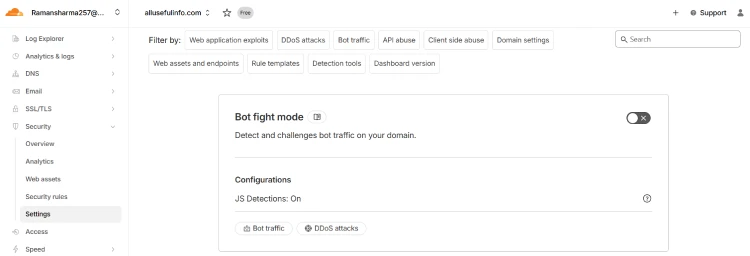
As soon as Bot Fight Mode was disabled, the preview started loading normally. That confirmed the issue was not AdSense, not my website, and not any ad code. It was just this one security setting blocking the preview request.
If you are using Cloudflare and facing this issue, try it out at very first. In many cases, this one small change is all you need.
2. Check Other Cloudflare Settings or Pause Temporarily
If turning off Bot Fight Mode didn’t fix the preview, Cloudflare can still be the reason. Cloudflare has more security features that can block the AdSense preview without you realizing it.
Here’s a simple way to check.
First, go to your Cloudflare dashboard and temporarily pause Cloudflare for your site. How would you do this? Let me tell you.
Inside your Cloudflare dashboard, choose the domain you want to pause Cloudflare for. Now, click on the Overview tab, look for Advanced Actions at the bottom right of the page and click on Pause Cloudflare.
Pausing Cloudflare means Cloudflare steps aside for a moment, and your site loads directly from your server.
Now go back to Google AdSense and open the Ad Settings Preview again. If the preview starts working, then any security setting at Cloudflare is definitely blocking it.
If it still doesn’t work, the problem is somewhere else, not Cloudflare.
Once you confirm Cloudflare is the cause, turn it back on and check these settings one by one:
- Bot Fight Mode (Already discussed above)
- Browser integrity check
- I’m under attack mode
- Block AI bots
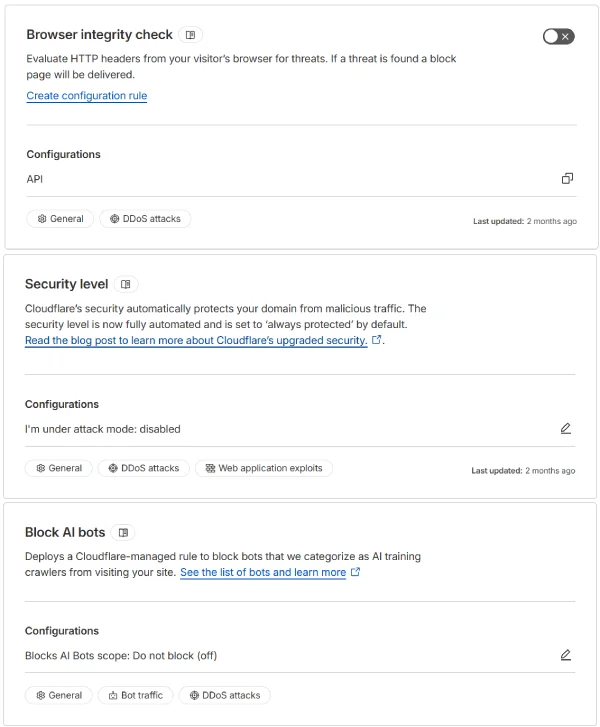
You don’t need to disable them all at once. Disable one setting, test the preview, and then move to the next. This step-by-step method will help you find the exact setting causing the issue.
This may sound slow, but it is the safest way. It keeps your site protected while still allowing AdSense preview to work properly.
3. Try Turning off Browser Extensions
This fix sounds very basic, but many times, this alone is the real reason the Ad Settings Preview does not work.
First, check your browser. If you are using any ad blocker, privacy extension, script blocker, or tracker blocker, turn it off for a moment. These extensions are made to block ads and tracking scripts. So when Google AdSense tries to load a preview of ads, your own browser stops it.
This is very common with extensions like ad blockers, privacy guards, or even some antivirus browser tools.
For a quick test, you can simply open AdSense Ad Settings Preview in Incognito mode (private window).
Why incognito helps:
- Most extensions are disabled by default
- No old cookies or cache interfere
- The page loads in a clean way
If the preview works in incognito but not in your normal browser window, then congratulations, you found the issue. It’s not AdSense. It’s not your site. It’s your browser setup.
In short, you will need to try turning off ad blockers and disabling extra browser extensions one by one to find which one is causing the issue.
Or if those are important for you, just keep using the AdSense Ad Settings Preview in incognito mode.
4. Make Sure the Page is Open, Accessible, and Loads Normally
This part is also important, and mainly new bloggers miss it. The Ad Settings Preview tool tries to open your page like a normal visitor. If your page does not open properly, the preview will fail. Simple as that.
First, check the page status. Open the page in your browser. If it shows 404 (page not found), 403 (access denied), or keeps redirecting again and again, the preview tool won’t work. Google can’t preview a page that itself is confused.
Now think about country blocking. If you have blocked some countries in Cloudflare, hosting, or WordPress plugins, the preview bot may also get blocked. Even if your main audience is India, Google tools don’t always come from Indian IPs. So make sure the page is not blocked by country rules.
Next thing you can check is the login or password protection. If the page needs a password or membership access, the preview tool cannot enter. Google won’t log in for you. If you are testing ads, always test on a page that is fully public.
Another thing you can check is redirect chains. It’s another very important thing.
The redirects like HTTP to HTTPS look fine, but when one URL goes to another and then another, it becomes a redirect chain. Too many redirects can confuse the preview tool. Try to keep it clean. You can check redirects on any URL using online redirect checker tools available on the internet.
A simple rule to remember:
If a normal user can open the page easily, without blocks, passwords, or errors, the AdSense preview tool has a much better chance of working.
If the page itself is broken or restricted, the AdSense preview breaking is not a surprise at all.
One More Suggestion
One last thing I want to say before you close this page.
If your website uses a lot of JavaScript or loads content inside iframes, the AdSense preview may not understand the page properly. It’s not your fault. The preview tool is simple and sometimes gets confused. Ads can still work fine for real people, even if the preview fails.
And sometimes, honestly, nothing is wrong at all. The AdSense preview tool itself can have small bugs or go down for some time. It happens.
So don’t panic. If ads are showing on your site, you’re doing okay. Try the steps mentioned in this post above and then try loading the preview again. Most of the time, this issue is much smaller than it looks.