A few years ago, writing code meant staring at a blank screen and figuring out everything on your own.
Today, that’s no longer true.
Developers now use AI tools to generate code, fix errors, and understand complex logic in seconds. But here’s the real problem. Most lists online either push paid tools, feel outdated, or simply don’t help when you actually need to build something fast.
So the real question becomes simple:
Which free AI tools can truly help generate code online without wasting your time?
This guide answers exactly that. No hype. No confusion. Just the most practical free AI tools for coding you can start using right away.
Why These AI Code Generators Are Helpful For Every Developer?
Not long ago, speed in coding meant typing faster. Now it means thinking less about boilerplate and more about what actually works.
Developers don’t really want more lines of code. They want results. Something that runs. Something that fixes the bug. Something that explains the mess in front of them without wasting half a day.
That’s where AI quietly stepped in. It helps developers write small chunks in seconds, solve errors they’re stuck on, read code they didn’t write, and make everyday development feel lighter.
Even experienced developers use it now, not as a shortcut, but as a companion that keeps the work moving.
But not every AI tool deserves your time.
So, I am keeping this list very simple and short. Every tool here has a real free version, is actively used by developers, and actually helps in practical coding work, not just shiny demos.
If it doesn’t save time, it’s not here. No theory. Just tools that work when you need them.
4 Best Free AI Tools For Code Generation
Some AI tools look impressive on the surface. Only a few actually help when you sit down to write real code. Let’s check out the free AI tools that make coding faster and easier in real projects.
| Tool | Best For | Key Strength | Free Limit | Ideal Use Case |
|---|---|---|---|---|
| Lovable | Full app generation & rapid prototyping | Builds complete working apps with modern stack + GitHub sync | ~5 credits per day | Creating MVPs or internal tools quickly |
| Genspark | Architecture-level project planning | Agentic workflow that plans logic, APIs, and structure before coding | ~100–200 AI developer credits/day | Complex dashboards, search tools, or data apps |
| Claude (Artifacts) | Refactoring & UI prototyping | Live preview window to test components instantly | ~10–20 messages every few hours | Cleaning messy code or testing frontend ideas |
| ChatGPT (Canvas) | Interactive coding & bug fixing | Editable code workspace with fix-bugs and add-comments tools | ~10 Canvas sessions every few hours | Learning, debugging, and small project building |
1. Lovable
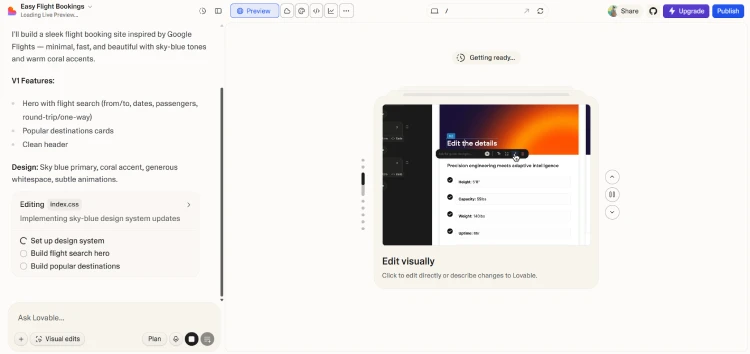
A few years ago, building an app meant a week of setting up environments, fighting with npm installs, and creating folders you’d eventually forget the purpose of.
Lovable changes that. It’s the leader of what developers are now calling “Vibe Coding.”
You don’t start with a code editor. You start with a conversation. You tell it, “I need a flight booking site,” and it doesn’t just give you a snippet, it builds the whole thing. The buttons work. The database connects. The layout actually looks professional.
The magic is in the “Thinking” tab. While it’s building, you can see the AI planning the architecture, choosing libraries, and even debugging itself when it hits a snag. It feels less like a tool and more like a senior dev sitting next to you.
What makes it a “real” tool for developers and not just a shiny demo is the output. It uses a modern stack: React, Vite, Tailwind CSS, and Supabase. Best of all? It has full GitHub sync. You can let the AI do the heavy lifting, then pull the code into your own environment and take over whenever you want. No proprietary lock-in.
It’s generous, but there’s a limit. You get 5 credits every day. In practical terms, that’s enough to spin up a full app skeleton and make a couple of major tweaks. It’s perfect for rapid prototyping or building a small internal tool over a cup of coffee. If you’re just “vibe-ing” and exploring an idea, it’s arguably the most powerful free start you can get in 2026.
2. Genspark
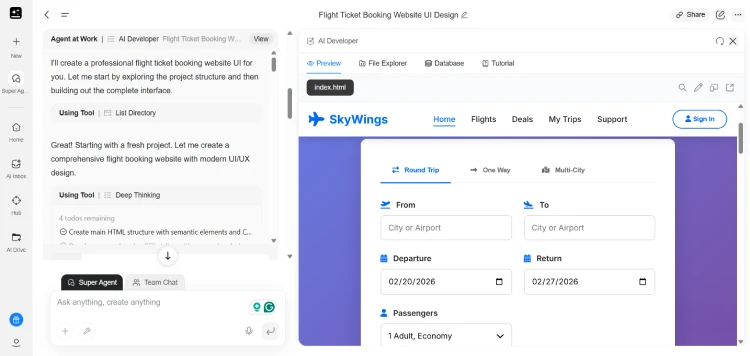
If Lovable is the “designer-developer,” Genspark is the “architect.”
Most AI tools wait for you to tell them exactly what to write. Genspark doesn’t. It’s built on what’s called an “agentic” workflow. When you give it a prompt, it doesn’t just start typing code. It stops and thinks.
It creates a plan first.
You’ll actually see a “Thinking” tab where it breaks down the logic, chooses the right database, and decides how the components should talk to each other. It’s like watching a senior developer draft a blueprint before touching the keyboard.
It’s particularly good if you are trying to build something complex, like a custom search engine or a data-heavy dashboard. It handles the “boring” parts, like setting up APIs and linking data, so you can focus on the actual functionality. It’s less about generating a snippet and more about generating a solution.
Genspark is incredibly generous right now because it’s the new player in the 2026 market. You get unlimited access to the basic AI chat, but the “AI Developer” agent (the one that builds the full apps) works on a credit system.
Usually, you’ll get around 100 to 200 credits a day. For a standard project, that’s plenty to get a working version live, but if you’re doing 50 revisions an hour, you’ll run out of gas by lunchtime.
3. Claude (with Artifacts)
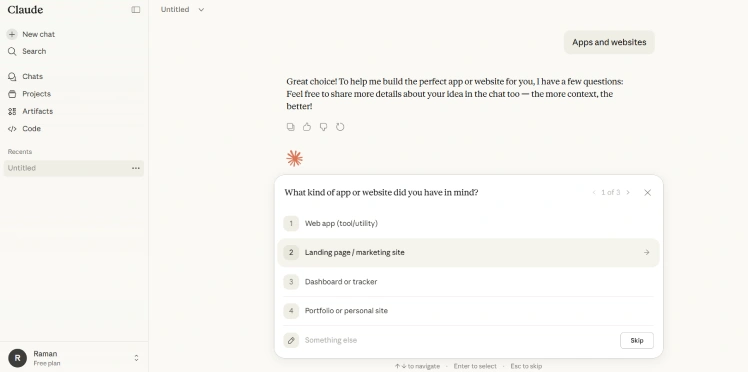
You know that feeling at 3 PM when your brain just… stops? You’re staring at a function you wrote two hours ago, and it looks like a foreign language. That is exactly when you open Claude.
The thing about Claude isn’t just that it’s smart; it’s that it feels like it actually “gets” you. Most AI tools bark back code like a robot following orders. Claude feels more like a senior developer sitting next to you who actually bothered to read your comments. It picks up on the nuance. It understands the “why” behind your messy logic and helps you clean it up without making you feel like an idiot.
But the real magic trick is the Artifacts window.
Think of it like this: In a normal chat, the AI sends you a long message you have to scroll through. With Artifacts, a dedicated window slides open on the right side of your screen. If you ask Claude to build a website or a small app, it doesn’t just give you the code; it shows you a live, working preview of that app in that side window.
You don’t have to be a tech expert to use it. You can actually click the buttons, see how the pages look on a phone, and watch the design come to life instantly. If you don’t like the color of a button, you just tell Claude in the chat, and you’ll see the change happen right before your eyes in the Artifact window. It turns coding into a visual conversation you can actually see and touch.
The Power Move: Use Claude for cleaning up messy code and building website designs. It is the best tool for taking “ugly” or confusing work and making it look professional in seconds.
You’ll usually get a handful of messages, maybe 10 to 20, every few hours. If you’re in a “flow state” and firing off quick tweaks, you’ll hit that limit faster than you think. Once you’re out, you either wait for the timer to reset or get bumped down to a much “simpler” model that isn’t nearly as impressive. Also, when their servers get crowded, paid users get priority, so you might deal with some lag.
4. ChatGPT (with Canvas)

Think of the regular ChatGPT like a simple text message app. You send a text, it replies, and you keep chatting. That’s fine for a quick conversation, but it’s a mess when you’re trying to build a real project. In 2026, the real secret for coders is a feature called Canvas.
It feels like you’re working on a shared Google Doc with a very smart friend. You don’t have to copy and paste code back and forth anymore. You can actually click into that window and type changes yourself, just like you would in a normal code editor.
Finding the Canvas feature in ChatGPT can be tricky because most people don’t know it’s there. You can just type “use canvas” in your prompt, or type a forward slash “/” and pick “Canvas” from the menu. Once it’s open, the AI doesn’t just give you a block of text; it places your code in that side window where you can actually see the whole thing at once.
The best part is the “toolkit” buttons at the bottom. If your code isn’t working, you click “Fix Bugs,” and the AI scans the lines, finds the error, and fixes it instantly. If you’re a beginner and don’t understand what the code is doing, you click “Add Comments,” and it writes little notes to explain everything in plain English. It makes coding feel less like a math test and more like a puzzle you’re solving together.
OpenAI is quite generous with this, but it’s not infinite. On the free plan, you get about 10 Canvas sessions every few hours. If you’re just fixing a few scripts for a school project or a side hobby, you’ll probably never even notice the limit. But if you’re trying to build a massive app all day long, you’ll eventually see a message telling you to take a break until the timer resets.





Really appreciate how this list cuts through the noise. The breakdown of Lovable vs. Genspark is particularly useful.
This article is very practical.