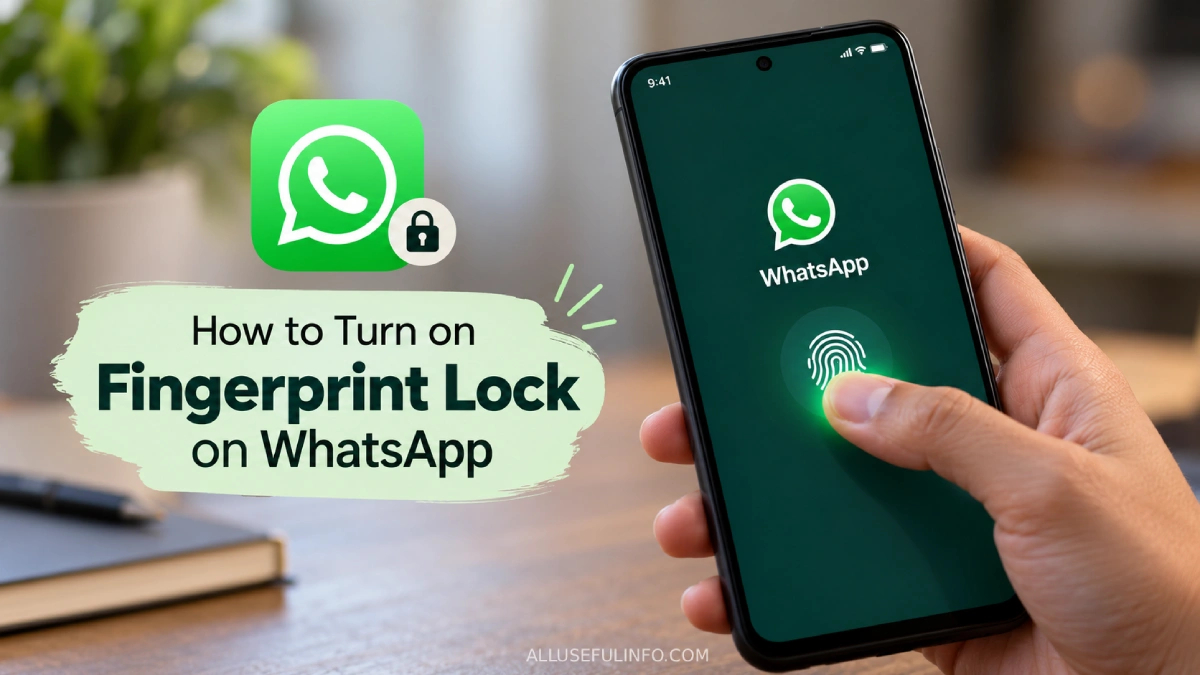
Your WhatsApp holds a lot more than casual chats. Bank OTPs, work conversations, family photos, UPI confirmations, all of it sits inside one app that anyone can open the moment they pick up your unlocked phone. Most people used to install a separate app lock to protect it, but you don’t need to anymore. WhatsApp has its own fingerprint lock built right in, and turning it on takes less than a minute.
This guide walks you through enabling it on Android, what each setting actually does, and how to fix it when the option won’t show up.
What You Need Before You Start
A couple of things have to already be in place, or the fingerprint lock option won’t appear in your settings.
- Your phone needs a fingerprint sensor, whether it’s the physical kind or one built into the screen.
- You must have at least one fingerprint already registered in your phone’s own settings. WhatsApp borrows from that, it doesn’t scan a new one.
- Keep WhatsApp updated to the latest version from the Play Store.
If your Android phone uses face unlock instead of a fingerprint (like some older Pixel models), the fingerprint lock option simply won’t be there, since WhatsApp relies on the fingerprint hardware your device has.
How to Turn On Fingerprint Lock on WhatsApp
The whole thing happens inside WhatsApp’s privacy settings. Here’s the exact path.
- Open WhatsApp and tap the three dots in the top right corner.
- Tap Settings.
- Tap Privacy.
- Scroll all the way to the bottom and tap App lock.
- Turn on Unlock with biometric.
- Place your finger on the sensor to confirm it’s you.
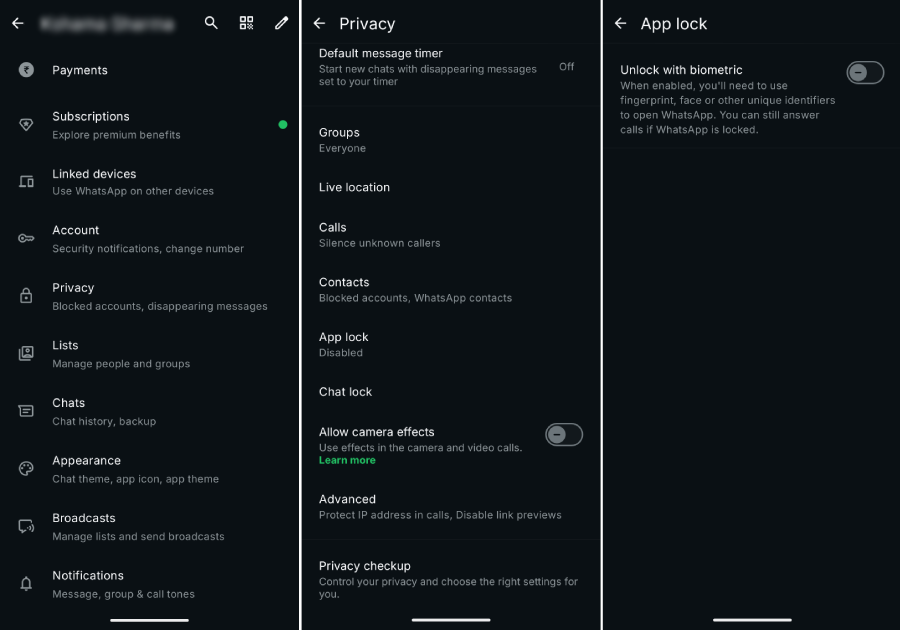
That’s it. From now on, WhatsApp asks for your fingerprint every time you open it.
A quick note if you’re following an older guide: you might see instructions that say go to Settings > Account > Privacy. Recent WhatsApp versions removed that extra “Account” step, so Privacy now sits directly inside Settings.
| Option | What it does | Best for |
|---|---|---|
| Immediately | Locks the second you close WhatsApp | Maximum privacy |
| After 1 minute | Stays open for a minute before locking | Quick back-and-forth replies |
| After 30 minutes | Only re-locks after half an hour | Less interruption, lighter security |
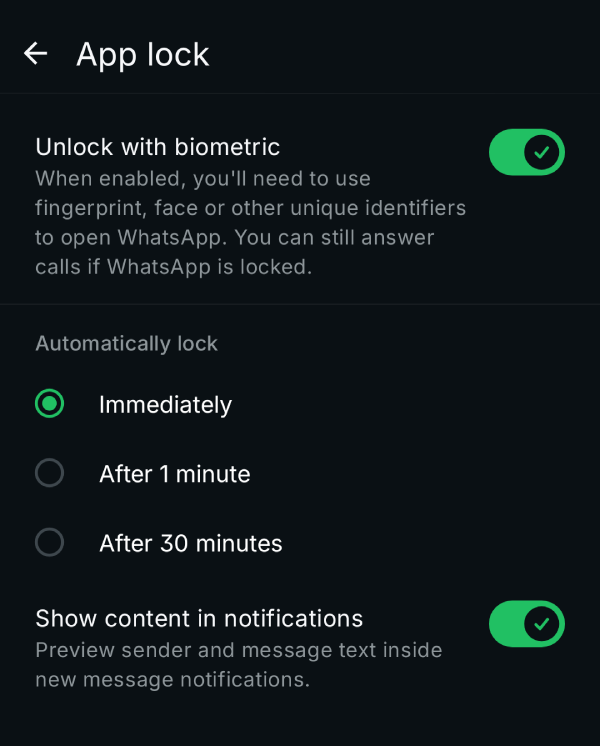
Pick based on how often you check your messages and how private your phone usually is. If you hand your phone around a lot, go with Immediately.
You Can Hide Message Previews in Notifications
There’s one more setting worth switching on. Even with the lock active, a new message can still flash its content in your notification bar, which kind of defeats the point. In the same Fingerprint lock screen, you can turn off the option to show content in notifications. Now you’ll see that a message arrived, but not what it says or who sent it, until you unlock the app.
What the Fingerprint Lock Does Not Do
It helps to know the limits so you’re not caught off guard.
- It locks the whole app, not single chats. This feature is all-or-nothing. If you want to lock one specific conversation, WhatsApp has a separate “Chat lock” feature for that.
- You can still get calls. Even when WhatsApp is locked, incoming calls come through and you can answer them without unlocking first.
- Any registered fingerprint works. If someone else’s fingerprint is saved on your phone, it’ll open your WhatsApp too. Check your phone’s fingerprint settings if that’s a concern.
- Your fingerprint stays on your phone. WhatsApp uses your device’s own biometric system and never receives or stores your actual fingerprint data.
Fingerprint Lock Not Showing Up? Try This
If you’ve looked and the option isn’t there, run through these quick checks.
- Update WhatsApp. An outdated version is the most common reason the setting is missing.
- Register a fingerprint first. Open your phone’s settings and make sure at least one fingerprint is saved, then reopen WhatsApp.
- Confirm your phone has a fingerprint sensor. Phones that rely only on face unlock won’t show this option.
- Restart the app. Fully close WhatsApp and open it again so the setting can load.
How to Turn Off Fingerprint Lock
Changed your mind? Go back to Settings > Privacy > App lock and switch off Unlock with biometric. WhatsApp will open normally again, with no fingerprint required.